This article describes how to configure multiple IPsec VPN connections for redundancy.
The following sections are covered:
- Sophos Firewall 1
- Sophos Firewall 2
- Test
Product and Environment
Sophos Firewall - All supported versions
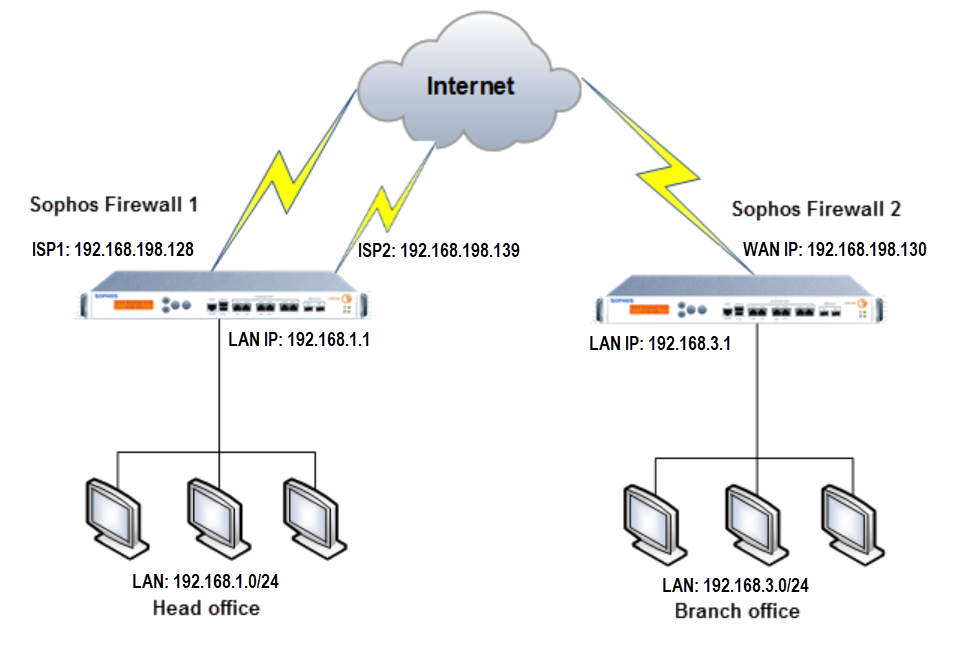
Configuring an IPsec VPN failover with multiple connections
Sophos Firewall 1
Local and remote LAN
1.Go to Hosts and Services > IP Host and add the local and remote LAN.
| Setting | Local LAN | Remote LAN |
| Name | SF1_LAN | SF2_LAN |
| IP version | IPv4 | IPv4 |
| Type | Network | Network |
| IP address | 192.168.1.0/24 | 192.168.3.0/24 |
2.Save your configuration .
IPsec VPN connection
- Go to Site-to-site VPN > IPsec > IPsec connection.
- Click Add and create IPsec connections for ISP1 and ISP2
- Save your IPsec connections.
- Click the red icon to activate both of your connections.
| Setting | ISP1 | ISP2 |
| General settings | ||
| Name | SF1_to_SF2_ISP1 | SF1_to_SF2_ISP2 |
| IP version | IPv4 | IPv4 |
| Connection type | Site-to-site | Site-to-site |
| Gateway type | Respond only | Respond only |
| Encryption | ||
| Profile | DefaultHeadOffice | DefaultHeadOffice |
| Authentication type | Preshared key | Preshared key |
| Gateway settings | ||
| Local gateway | ||
| Listening interface | Port2 - 192.168.198.128 | Port5 - 192.168.198.139 |
| Local subnet | SF1_LAN | SF1_LAN |
| Remote gateway | ||
| Gateway address | 192.168.198.130 | 192.168.198.130 |
| Local subnet | SF2_LAN | SF2_LAN |
| Advanced | ||
| User authentication mode | None | None |
Firewall rules to allow VPN traffic
- Go to Rules and policies > Firewall rules.
- Add two new firewall rules.
- Save your rules.
| Setting | Rule 1 | Rule 2 |
| Rule name | Outbound_VPN_Traffic | Inbound_VPN_Traffic |
| Rule position | Top | Top |
| Source zones | LAN | VPN |
| Source networks and devices | SF1_LAN | SF2_LAN |
| Destination zones | VPN | LAN |
| Destination networks | SF2_LAN | SF1_LAN |
Sophos Firewall 2
Local and remote LAN
1.Go to Hosts and Services > IP Host and add the local and remote LAN.
| Setting | Local LAN | Remote LAN |
| Name | SF2_LAN | SF1_LAN |
| IP version | IPv4 | IPv4 |
| Type | Network | Network |
| IP address | 192.168.3.0/24 | 192.168.1.0/2 |
2.Save your configuration.
IPsec VPN connection
- Go to Site-to-site VPN > IPsec > IPsec connection.
- Click Add and create IPsec connections for ISP1 and ISP2.
- Save your IPsec connections.
- Click the red icon to activate both of your connections.
- Click Add under Failover group.
| Setting | ISP1 | ISP2 |
| General settings | ||
| Name | SF2_to_SF1_ISP1 | SF2_to_SF1_ISP2 |
| IP version | IPv4 | IPv4 |
| Connection type | Site-to-site | Site-to-site |
| Gateway type | Initiate the connection | Initiate the connection |
| Encryption | ||
| Profile | Default Branch Office | Default Branch Office |
| Authentication type | Preshared key | Preshared key |
| Gateway settings | ||
| Local gateway | ||
| Listening interface | Port-B - 192.168.198.130 | Port-B - 192.168.198.130 |
| Local subnet | SF2_LAN | SF2_LAN |
| Remote gateway | ||
| Gateway address | 192.168.198.128 | 192.168.198.139 |
| Local subnet | SF1_LAN | SF1_LAN |
| Advanced | ||
| User authentication mode | None | None |
6.Configure it as follows:
| Connection group details | |
| Name | Enter a name |
| Available connections |
|
| Member connections |
|
| Failover condition | |
| If not able to connect TCP Port 80 | |
| And not able to connect PING | |
7.Click the red icon to activate and establish the primary connection.
Firewall rules to allow VPN traffic
- Go to Rules and policies > Firewall rules.
- Add two new firewall rules.
- Save your rules.
| Setting | Rule 1 | Rule 2 |
| Rule name | Outbound_VPN_Traffic | Inbound_VPN_Traffic |
| Rule position | Top | Top |
| Source zones | LAN | VPN |
| Source networks and devices | SF2_LAN | SF1_LAN |
| Destination zones | VPN | LAN |
| Destination networks | SF1_LAN | SF2_LAN |
Test:
A ping request from a device behind Sophos Firewall 1 to a device behind Sophos Firewall 2 and vice versa should work.
When you go to the Firewall rules tab, you should see ingress and egress traffic allowed in your inbound and outbound VPN traffic rules.
Go to Reports > VPN to verify the traffic usage.
Note:
- Make sure that VPN firewall rules are on top of the list of rules.
- In a head and branch office configuration, Sophos Firewall on the branch office usually acts as the tunnel initiator and Sophos Firewall on the head office as a responder due to the following reasons:
- When the branch office device is configured with a dynamic IP address, the head office device cannot initiate the connection.
- As the number of branch offices varies, it is recommended that each branch office retry the connection instead of the head office retrying all connections to the branch offices.
- Failback behavior
- During a failback event, if the failback connection is not established, Sophos Firewall will keep the secondary active connection up until the next Dead Gateway Detection event.
- The failback connection will only be attempted once. If it fails, the behavior described above will apply.
- Example:
Failover Group name Failback IPsec Tunnel name Head_Office Yes - SF2_to_SF1_ISP1
- SF2_to_SF1_ISP2
If failback to SF2_to_SF1_ISP1 fails due to any connectivity issue during a failback event, the SF2_to_SF1_ISP2 connection will remain up. The connection will only shift to SF2_to_SF1_ISP1 (the primary connection of the failover group) if SF2_to_SF1_ISP2 goes down
Was this article helpful?
That’s Great!
Thank you for your feedback
Sorry! We couldn't be helpful
Thank you for your feedback
Feedback sent
We appreciate your effort and will try to fix the article