How to import intermediate and root certificates via MMC
- Add certificate snap-in.
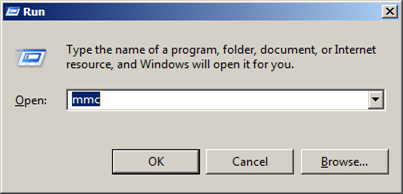
- Launch MMC. Click on the Start Menu >> Run.
- Type in MMC and Press >> OK
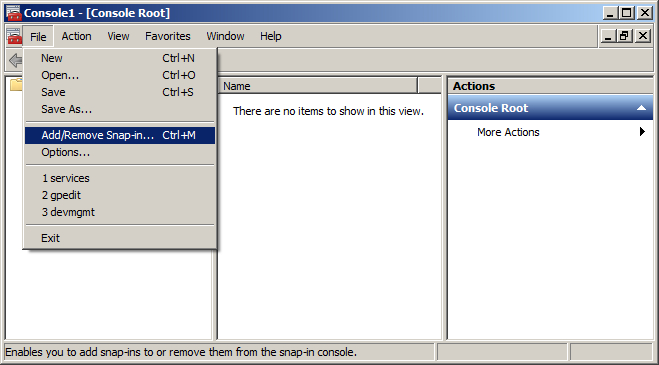
2. Click on File and choose the Add/Remove Snap-in option.
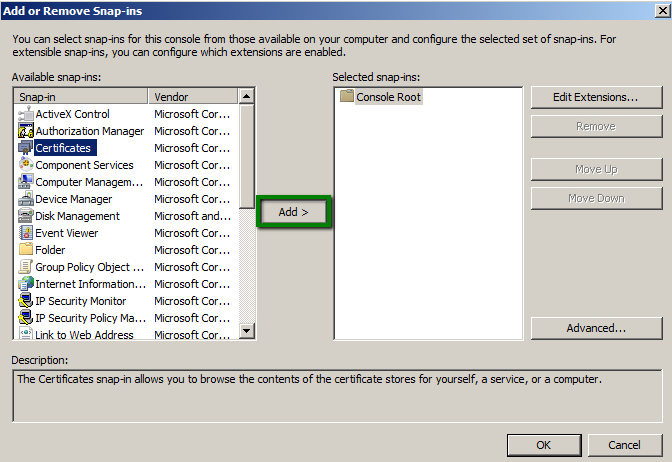
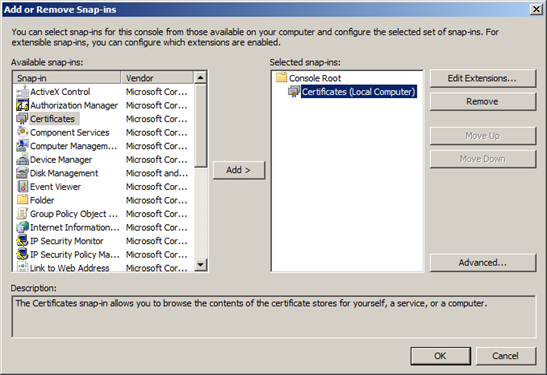
3. Select Certificates from the Available snap-ins list and click the Add button.
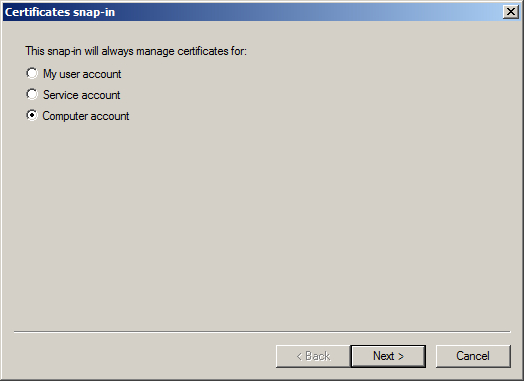
4.Choose Computer account to manage the certificate and click Next.
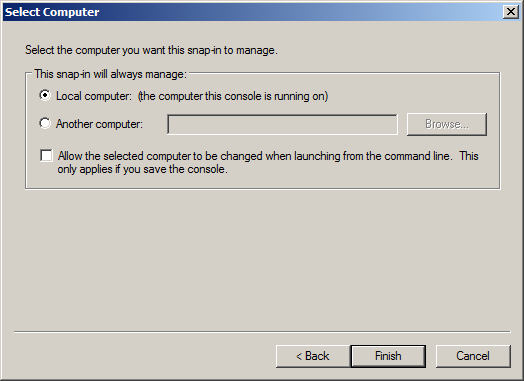
5. Select Local Computer and press the Finish button.
6. Certificates snap-in was selected. Click OK to add it to the console.
- Import Trusted root certificates.
1. To import a root certificate, right-click on Trusted Root Certification Authority >> All Tasks >> Import
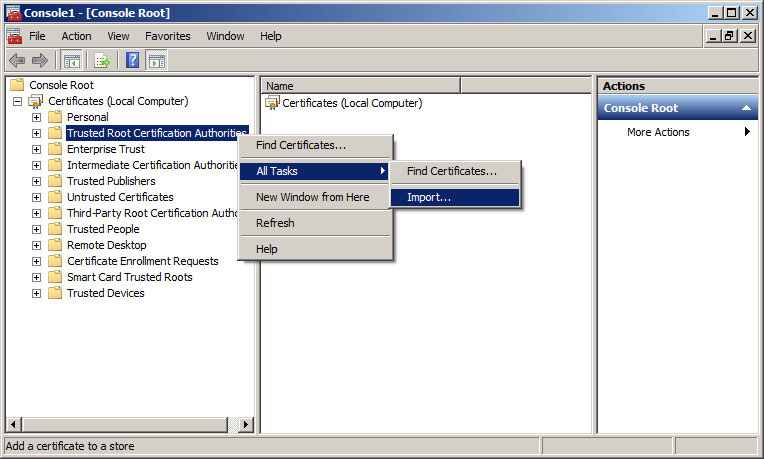
2. Clicking on the Import button will run the Certificate import wizard.
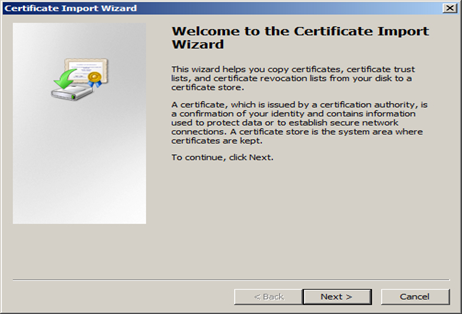
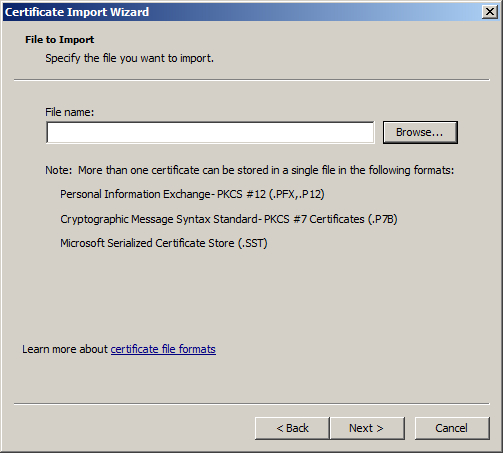
3. Browse the Sophos certificate file you want to import to your computer and click Next.
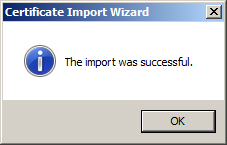
4. Click the Finish button to complete the wizard. The certificate has been successfully imported.
Install the certificate in your web browser
Internet Explorer
- In the Menu Bar, click Tools > Internet Options to display the Internet Options window.
- Switch to the Content tab and, under the Certificates section, click Certificates to display the Certificates Window.
- Switch to the Trusted Root Certification Authorities tab and click the Import button to start Certificate Import Wizard.
- Import the Certificate downloaded in step 1 using this wizard.
Firefox
- In the Menu Bar, click Tools > Options to display the Options window.
- Switch to the Advanced tab and then select the Certificates tab.
- Click View Certificate to display the Certificate Manager window.
- Switch to the Authorities tab and click Import.
- Select the Certificate downloaded in step 1 and click Open.
- In the Downloading Certificate window, select Trust this CA to identify websites and click OK.
Google Chrome
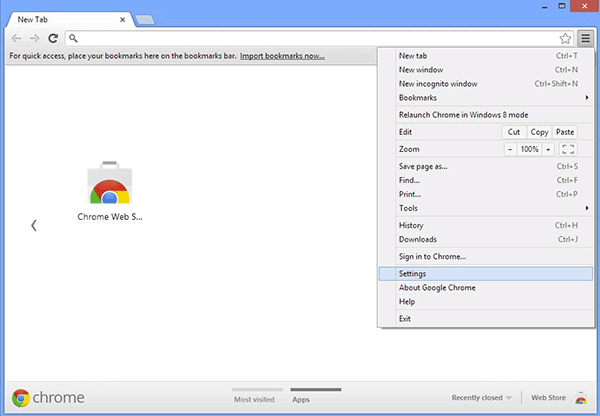
- Open Google Chrome. Open the menu at the top right corner and select Settings.
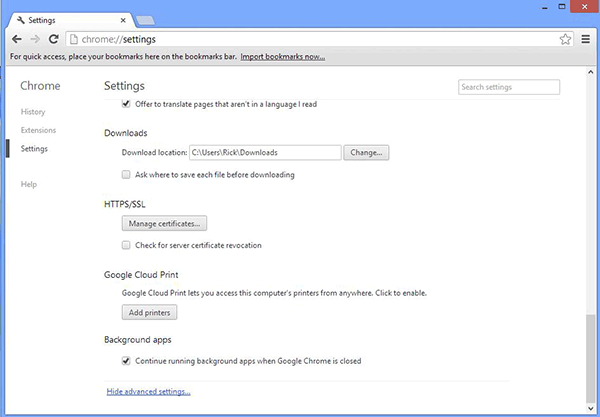
- Select Show Advanced Settings > Manage Certificates.
 .
.
- Click Manage Certificates... to display the Certificates window.
- Switch to the Trusted Root Certification Authorities tab and click the Import button to start Certificate Import Wizard.
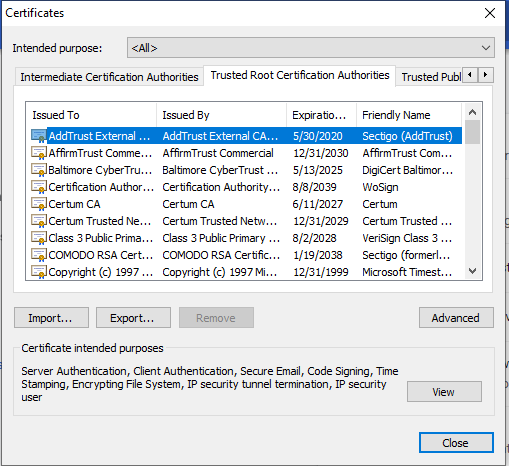
- Click on Import.
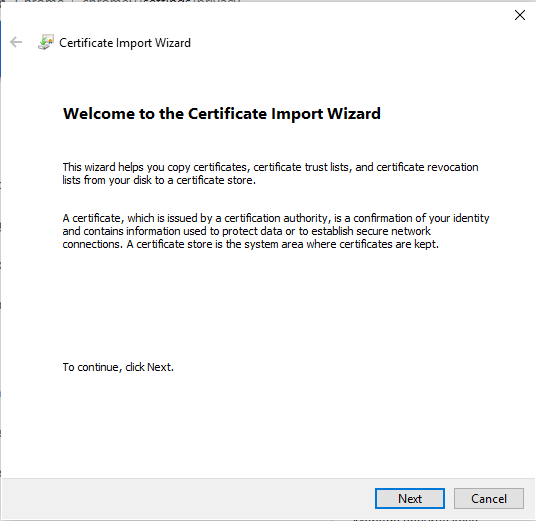
- Certificate Wizard Window Appear. Click Next.
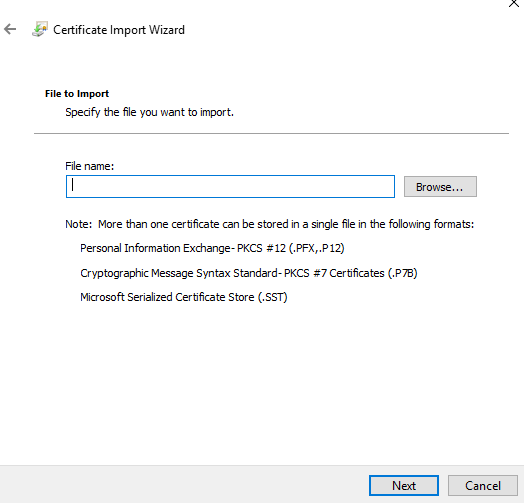
- Browse the CA Certificate and Click on Next.
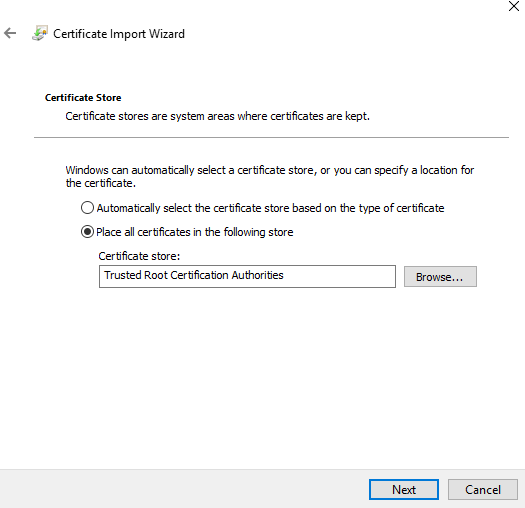
- Click Next.
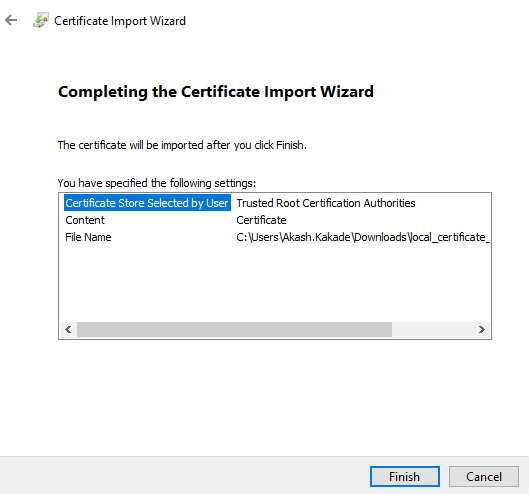
- Click On Finish
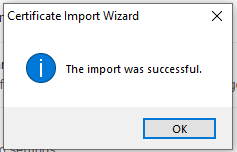
Safari
- Download the SSL CA Certificate as shown in step 1.
- Once downloaded, double-click the Certificate. This launches Keychain Access and displays a Certificate Not Trusted warning.
- Click Always Trust to import the certificate into Login Keychain.
Opera
- Click the Opera button on the top left corner of the screen and click Settings.
- Switch to the Privacy & Security tab.
- Under HTTPS/SSL, click Manage Certificates…to display the Certificates window.
- Switch to the Trusted Root Certification Authorities tab and click the Import button to start the Certificate Import Wizard.
- Import the Certificate downloaded in using this wizard.
Was this article helpful?
That’s Great!
Thank you for your feedback
Sorry! We couldn't be helpful
Thank you for your feedback
Feedback sent
We appreciate your effort and will try to fix the article