Viewing event and forward traffic logs
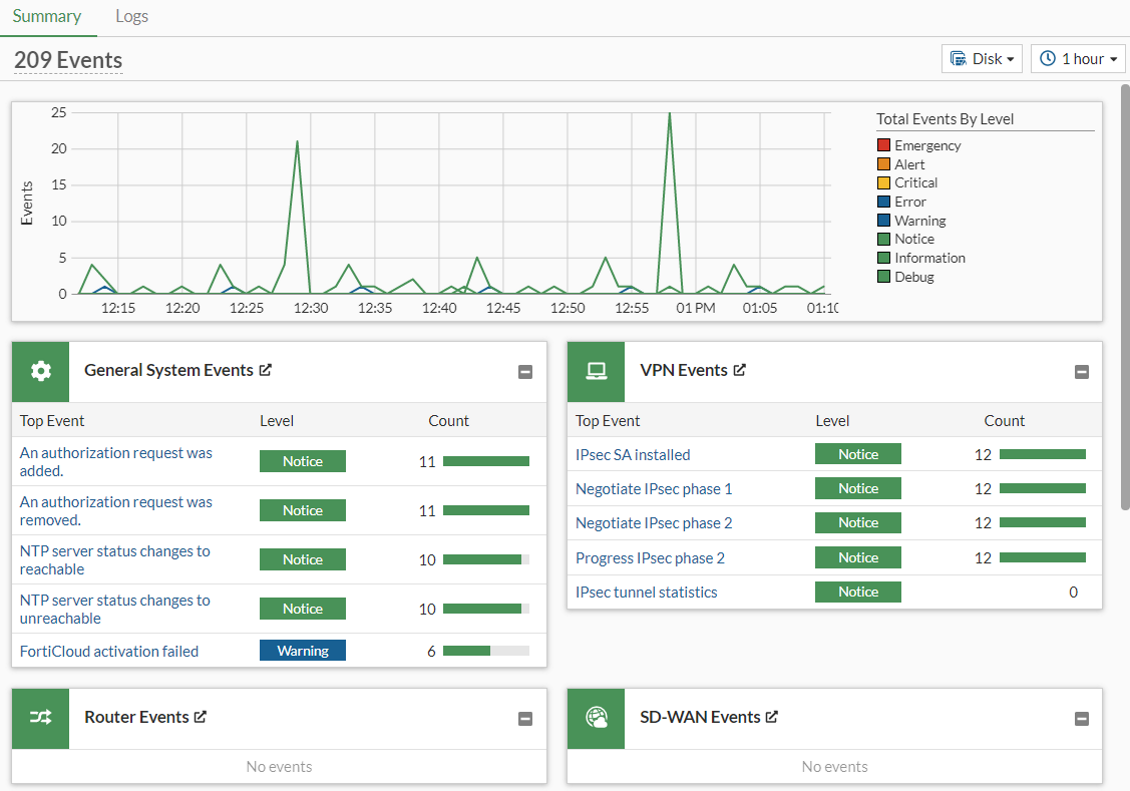
Event log subtypes are available on the Log & Report > System Events page / forward traffic Not all of the event log subtypes are available by default. See System Events log page and forward traffic page for more information.
When viewing event logs in the Logs tab, use the event log subtype dropdown list on the to navigate between event log types.
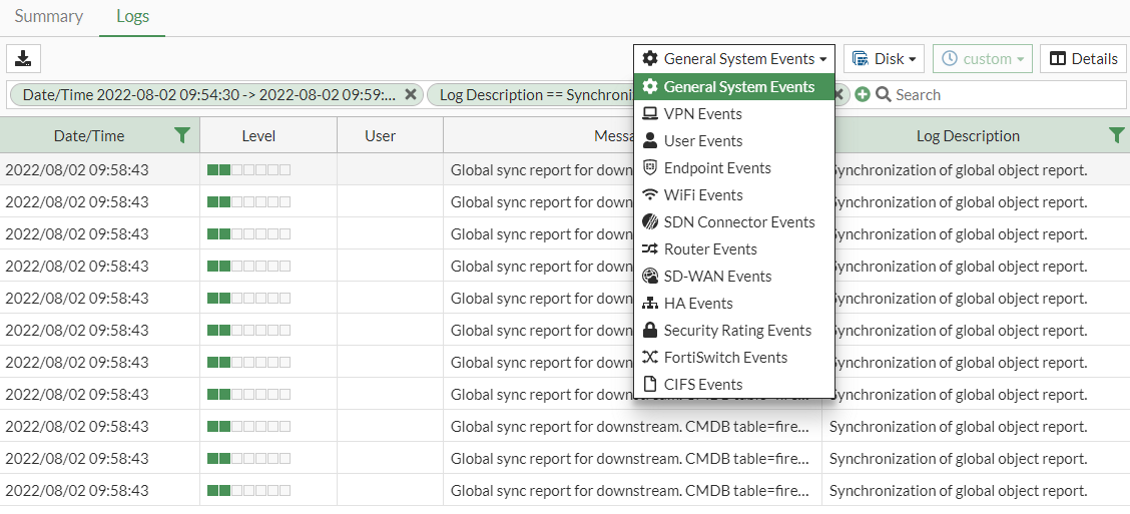
System Events | Always available. |
Router Events | Always available. |
VPN Events | Available when VPN is enabled in System > Feature Visibility. |
SD-WAN Events | Always available. |
User Events | Always available. |
Endpoint Events | Available when Endpoint Control is enabled in System > Feature Visibility. |
HA Events | Always available. |
Security Rating Events | Always available, but logs are only generated when a Surface Attack Security Rating License is registered. |
WAN Opt. & Cache Events | Available on devices with two hard disks by default. On devices with one hard disk, the disk usage must be set to |
WiFi Events | Available on hardware devices when WiFi Controller is enabled in System > Feature Visibility. |
FortiExtender Events | Available when FortiExtender is enabled in System > Feature Visibility. |
SDN Connector Events | Always available. |
FortiSwitch Events | Available when Switch Controller is enabled in System > Feature Visibility. |
CIFS Events | Always available. |
REST API Events | Always available. |
Logs can be filtered by date and time in the Log & Report > System Events page. The log viewer can be filtered with a custom range or with specific time frames.
 | UTM logs can also be filtered by date and time in Log & Report > Security Events. See Security Events log page. |
The time frame available is dependent on the source:
Logs sourced from FortiAnalyzer, FortiGate Cloud, and FortiAnalyzer Cloud have the same time frame options as FortiView (5 minutes, 1 hour, 24 hours, or 7 days).

Logs sourced from the Disk have the time frame options of 5 minutes, 1 hour, 24 hours, 7 days, or None.
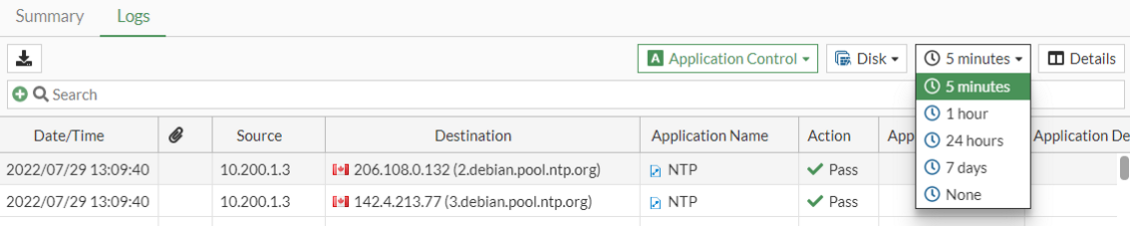
Logs source from Memory do not have time frame filters.
A custom time frame can be applied using the Date/Time filter. If the Date/Time filter is applied, the time frame will be disabled and set to custom.

Was this article helpful?
That’s Great!
Thank you for your feedback
Sorry! We couldn't be helpful
Thank you for your feedback
Feedback sent
We appreciate your effort and will try to fix the article